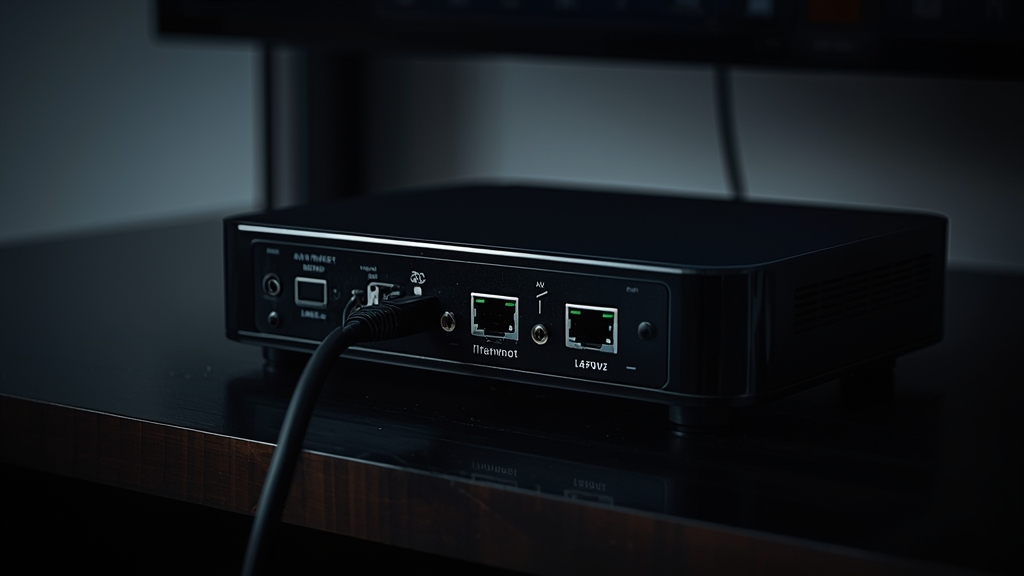
How MAG boxes are different from Fire Stick or Android boxes
A MAG box (Infomir's set-top box line) doesn't run an app store at all — it boots directly into a portal interface configured with a single URL and identified by the box's unique MAC address, rather than logging into an app with a username and password.
Setup steps
- Connect the MAG box to your TV via HDMI and to your network via Ethernet (Wi-Fi adapters exist for some models but wired is more reliable).
- On first boot, go to Settings → System Settings → Servers → Portals.
- Enter the portal URL provided in your welcome message into Portal 1.
- Restart the box — it should load the channel list automatically using your MAC address, no username/password needed.
If the portal doesn't load, double-check the URL was typed exactly (no trailing spaces) and that your MAC address was registered with the provider — message us your box's MAC address (found in the same Settings menu) if you're not sure it's been activated.
MAG box vs Fire Stick or Android box
MAG boxes are purpose-built for IPTV and handle large channel lists efficiently, but they're less flexible than Fire Stick or Android devices, which also run other streaming apps. If you want a single device for everything, compare options in our Firestick vs Android box guide — MAG boxes make the most sense when IPTV is the device's only job.
Common MAG box issues
- Portal won't load: confirm Ethernet is actually connected, not just plugged in loosely
- Channels load but freeze: update the box's firmware from Settings → System — older firmware handles modern streams poorly
- Black screen on HDMI: try a different HDMI port or cable before assuming the box itself is faulty
Setting up a MAG box for the first time and want it done right the first try? Message us on WhatsApp with your MAC address and we'll get you set up.