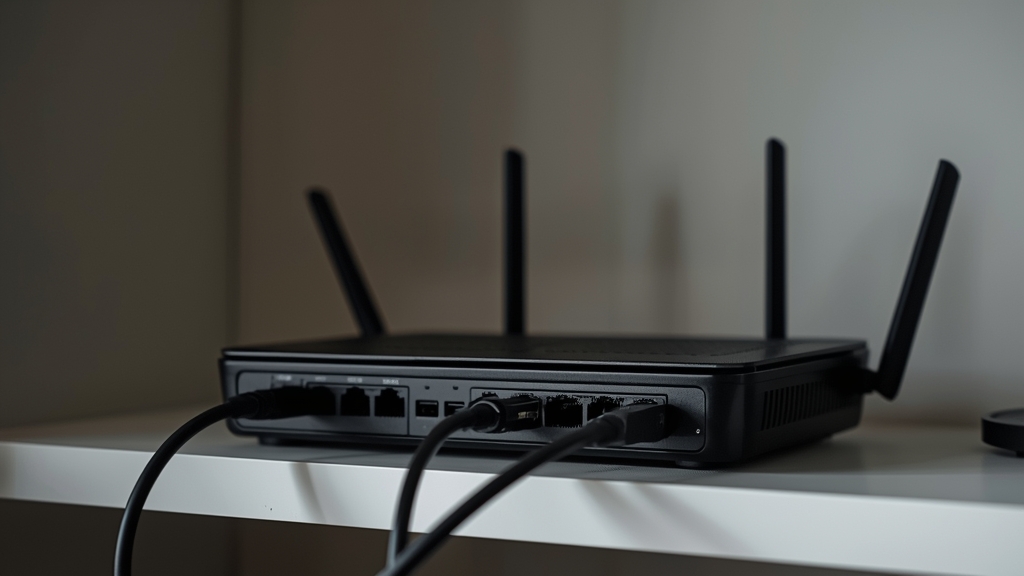
Enable Quality of Service (QoS) and prioritize your streaming device
Most modern routers have a QoS setting buried in advanced settings that lets you prioritize specific devices' traffic. Setting your streaming box or Smart TV as high priority means it gets first claim on bandwidth when other devices on the network start downloading or backing up in the background.
Use 5GHz Wi-Fi, not 2.4GHz, for streaming devices
2.4GHz has better range but far more interference from neighboring networks and household electronics; 5GHz is faster and cleaner for a device sitting in the same room as the router. If your streaming box is more than one or two rooms away, a wired Ethernet connection or a mesh Wi-Fi extender beats fighting with 2.4GHz.
Set a wide-enough channel width and avoid crowded channels
An 80MHz channel width on 5GHz gives more headroom for 4K streaming than the narrower defaults some routers ship with. Most router apps also show which Wi-Fi channels nearby networks are crowding — switching to a quieter one reduces interference-driven stuttering.
Reserve a static local IP for your streaming device
Assigning a DHCP reservation (a consistent local IP) to your streaming box or TV in the router's settings avoids occasional connection drops caused by IP address renewal — see our static vs dynamic IPTV logins guide for the related distinction on the provider side.
Try switching DNS providers
Cloudflare (1.1.1.1) or Google (8.8.8.8) DNS often resolve faster and more reliably than an ISP's default DNS servers, which can shave meaningful load time off channel switching and app startup.
Restart the router on a schedule
A full weekly power-cycle clears accumulated memory leaks that build up over days of continuous uptime — a surprisingly effective, low-effort fix. For everything else that can cause stuttering beyond the router itself, see our full buffering fixes guide.
Still buffering after adjusting router settings? Message us on WhatsApp with your device and connection speed and we'll help isolate the cause.